


Options Window
Games Tab (Games Overview and Selection)
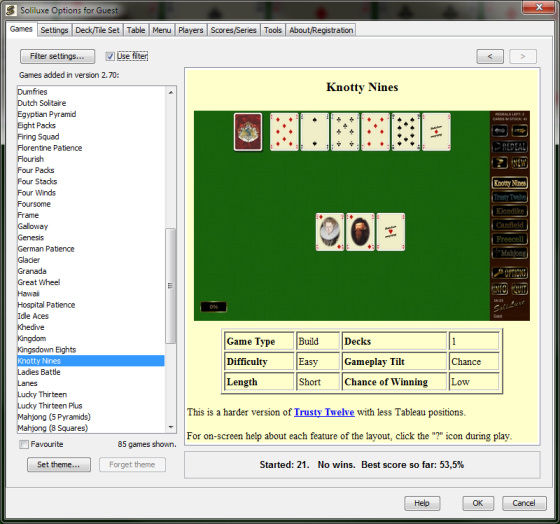
This tab allows you to switch to any game available in SoliLuxe.
Tip: If the list with the game names is in focus, pressing a letter on the keyboard will make the selection jump to the first game name with that initial letter.
When you select a game in the list on the left, a short description pops up to the right. Beneath the description, you also get some statistics about how well you've done with this game in the past - number of games started, number of games won, quickest solution achieved, and so on.
The game descriptions may contain hypertext links to other games: When you click such a link you are transported to the new game just as if you had clicked it in the list.
Above the the game description, there are also two "browser history" buttons. SoliLuxe keeps track of all games you have looked at and/or played during the session, and you can use these buttons to traverse the history. ( [ < ] is "backwards" and [ > ] is "forwards".)
To play the game currently shown in the game description, simply click the OK button at the bottom of the Options window. (Before you click OK, you can also visit the other tabs in the Options window and make further changes, as described here.)
Or: Double-click a game in the game list to close the Options window and start the game instantly.
Note that switching games on the Games tab as described here does NOT work if a series of games is in progress. See the Series / Scores tab for more information.
The filter allows you to see only a selection of games in the games list. Press the Filter settings... button to open the filter dialog window:

In the filter settings, you have three radio buttons: The first one will filter the games according to a previously saved game list — click the Load list button to select which list to use. There are a number of such lists delivered with SoliLuxe: See the ListMaker tool for a description of how to make more yourself.
The second "See..." radio button sets the filter to only show the games you yourself have marked as favourites (see "Favourite Checkbox" further down on this page). The third will filter the list by certain criteria represented by the checkboxes further down.
In the example depicted, we have selected to view only easy 2-deck building games with a medium to high chance of winning. Click the Use filter button to close the filter dialog and apply this filter to the games list.
Next to the Filter... button in the Games tab is a Use filter checkbox. De-select it to view all available games again.
In the filter dialog, SoliLuxe tries to make sure no criterium (for example, Length) is ever completely de-selected, since that would result in an empty games list. Thus, if you de-select All for a criterium that has no other checkboxes selected, ALL the specific checkboxes for that criterium will be automatically selected. And if you de-select all specific checkboxes, the All checkbox will be automatically selected again.
Also, every time you select a specific criterium, the radio buttons at the top change so that Games filtered by: gets selected.
The filter settings are remembered between sessions and are individual to each player. However, when SoliLuze starts the filter is always de-activated. You have to check the Use filter checkbox to activate it again.
Use the Favourite checkbox to create a list of favourites, which can be then be viewed using the filter as described above. Ticking the checkbox will make the currently selected game a favourite.
The Set theme... and Forget theme buttons only work in registered mode. When you click the Set theme... button, a dialogue pops up with three options for what should be saved in the theme for the game:
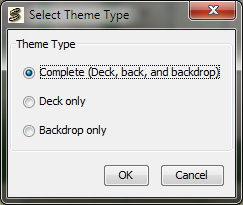
If a game already has a theme, using Set theme... again will replace that theme with new settings.
The Forget theme button makes SoliLuxe forget about any special theme setting previously chosen for the game and will use what's currently selected in the various Options tabs. ("The Forget Theme" button is only enabled for games where a special theme has been previously set, which also makes it an indicator of which games have their own themes.)