


Tools Tab
DeckMaker Tool
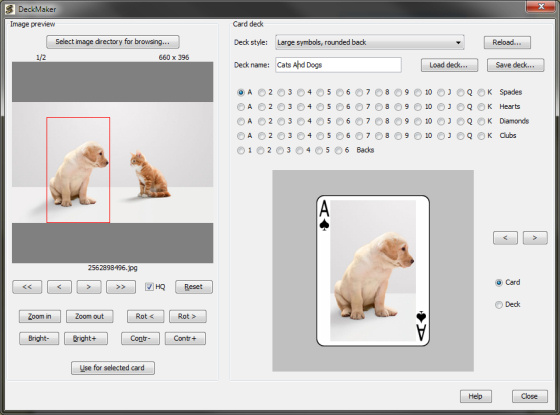
(Registered users only. And no, that's not my dog. Or cat!)
This tool provides an easy way to use your own graphics in a deck of cards.
As long as SoliLuxe is running, you can close and open the DeckMaker any number of times without losing your work. Just remember to save any deck in progress before shutting down SoliLuxe!
Note: If you plan on using really huge pictures (say 10 megapixels and above), we sincerely recommend scaling them down to a more manageable size using a dedicated image processing program before trying to use them in SoliLuxe: The built-in scaling algorithm is very slow dealing with such huge images, and SoliLuxe will more or less grind to a halt.
The left hand part of the window works very much like the BackdropMaker, and lets you browse and manipulate the source images you want to use for the card faces and backs. The right hand side is where you load and save decks, and select the cards you want to work with.
When you start DeckMaker, it opens with a deck template (a complete deck suitable for modification) already loaded, so you do not have to create or load a deck to get started. You can choose to put pictures only on face cards and / or aces, or decorate each card — it's entirely up to you.
Use the top right drop-down list to choose a deck style:


Large symbols: Large card symbols, suitable for large games with
scaled-down cards on the tableau. Narrow, rectangular images on card faces.
Back image with narrow borders.
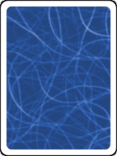
Large symbols, rounded back: Same as above, rounded edges to
back image.

Large symbols, assymmetric, rounded back: Same as above, but front images
"wrap" around corner symbols.
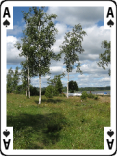
Small symbols: Image "wraps" around corner symbols. Back image with narrow borders.
Small symbols, rounded back: Image "wraps" around corner symbols,
rounded edges to back image.
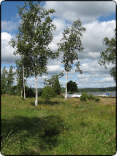

Memory: Cards with only slightly rounded corners. Image fills entire card.
No symbols.


Blank: Cards with normally rounded corners. Image fills entire card.
No symbols.
Next to the drop-down list is a "Reload..." button, which will reload the currently selected style template and overwrite the deck you were currently working on — effectively, a "start over" button.
Use the radio buttons on the right hand side to select a specific card face or card back to work with. You can also use the browse buttons next to the card preview image. (Keyboard shortcuts: Alt+Page Down and alt+Page Up.)
The card preview window below the buttons normally shows the current image for the selected card. If you click on the "Deck" radio button beside the preview area, you will get a very small preview of the entire deck image instead — it's not big enough to see details, but it should enable you to see which cards have been altered, and which are in their original state.
Use the "Select image directory for browsing..." button on the left. Browse the images in the folder you selected to find a suitable source image, and rotate the image if needed. Re-size and move the red crop rectangle in the preview area until it encloses the portion of the image that should be used as a card face (or back).
Use the other image processing buttons to customize the picture if required. Once you're happy with the preview image, click the "Use for selected card" button to transfer the image to the card. You will see the result immediately in the card preview panel.
To save your new deck or work in progress, type a name in the "Deck name" text box and click the "Save deck..." button. This process can take some time, which is why you will get a "busy" cursor while saving is in progress.
Note: New decks will show up at the bottom of the Decks tab preview list. When you restart SoliLuxe, the decks will be sorted in alphabetical order in the normal way.
To load any deck into the DeckMaker, click the "Load deck..." button.
All your decks will be available for selection, but DeckMaker will warn you if you try to load a deck that wasn't originally made in DeckMaker. This is because the templates may not be suitable for other decks (although you should be able to use DeckMaker for changing card backs neatly on almost all decks).
If you select a deck that was previously made in DeckMaker, the proper "deck style" will be automatically selected when loading the deck.
In addition to the actual deck image file SD-[deck name].png, the DeckMaker creates another file named SDI-[deck name].sdi whenever it saves a deck. This information file just tells SoliLuxe that the corresponding deck was created in DeckMaker, and which template was used.
If you distribute a deck of your own to others, it works perfectly well with just the .png file. However, it is a nice gesture/good idea to also include the .sdi file for other DeckMaker users.